

Setting up Trevion
The manual describes the steps to set up 'Trevion - Imbalance' on the SmartgridOne Controller.
Supported Devices
| Device Type | Variants | Supported |
|---|---|---|
| Solar Inverters | All | ✅ |
| Storage Devices | ❌ | |
| EV Chargers |
Supported Countries
| Country | Supported |
|---|---|
| Belgium | ✅ |
| Netherlands | ❌ |
Prerequisites
1. Add the batteries
Login to the commissioning interface and make sure the devices are added to the SmartgridOne Controller.
2. Check the grid power limits
In the settings, the grid power limits should be set correctly. Click Settings and check the highlighted setting in the image. If necessary, adjust the settings.
3. Custom Fields
The following information must be known before adding the Control Signal:
-
Curtailment Threshold
- The imbalance price threshold at which curtailment begins.
-
Curtailment Depth
- The percentage of nominal inverter power to be curtailed during curtailment periods.
- A value of 100 means 0% production during curtailment periods.
-
Curtailment Strategy
- Limit the power of inverters (recommended).
- Switch off a subset of inverters (less accurate; only necessary if inverters do not support setpoint control).
-
Timeout
- If the connection with the servers is lost, this defines how long we continue using the last received value before reverting to local control.
-
Daily Overrides
- The values above can be adjusted on specific days of the week (e.g., Sunday) if needed.
- Use the format:
weekday (integer); start time (hh:mm); duration in minutes (integer); threshold; curtailment depth.
Add 'Trevion - Imbalance'
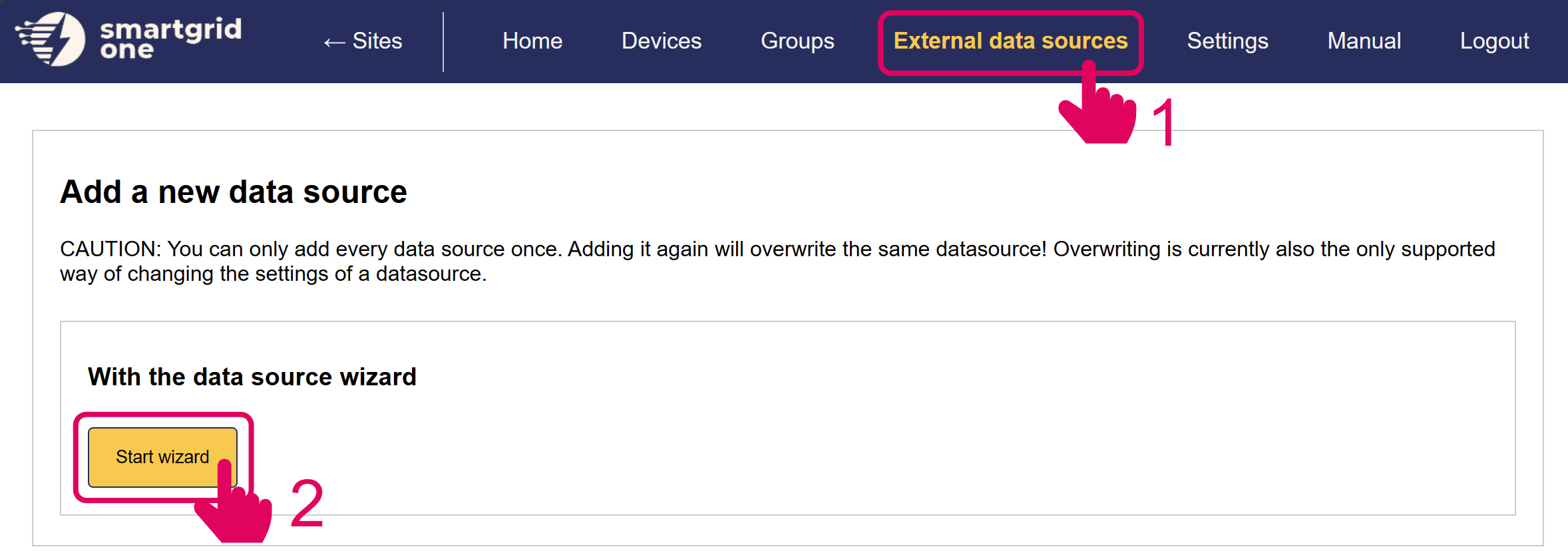
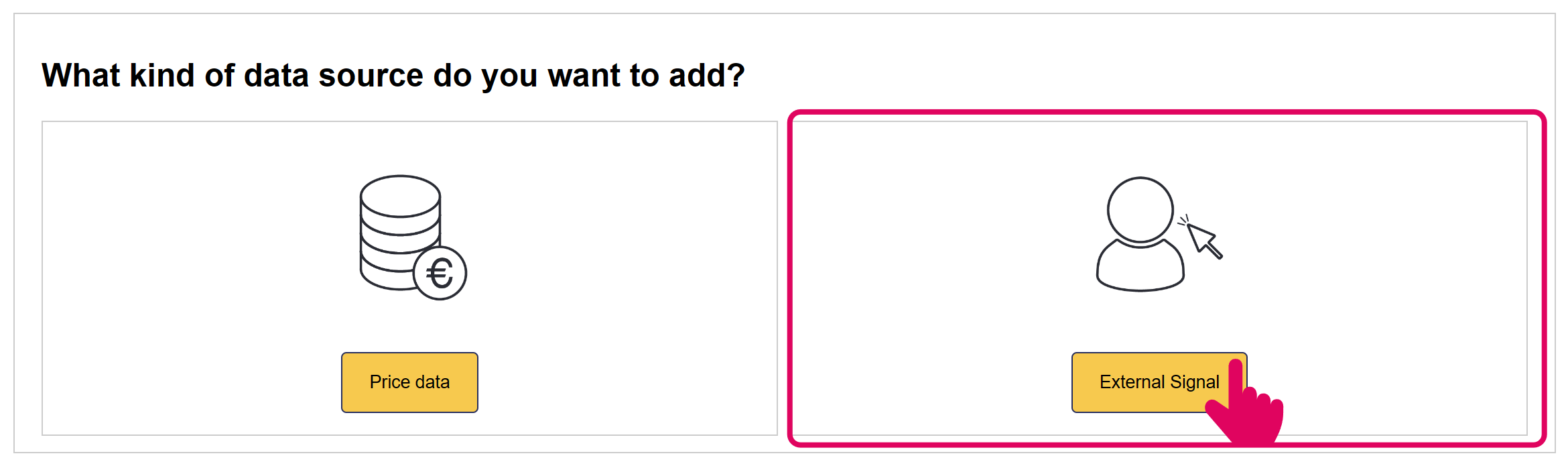
In the next page, you have the option to include/exclude devices for remote control. Ensure to mark all checkboxes of devices you'd like to include.
Note
When using multiple batteries, they are aggregated into one (virtual) asset for Trevion.
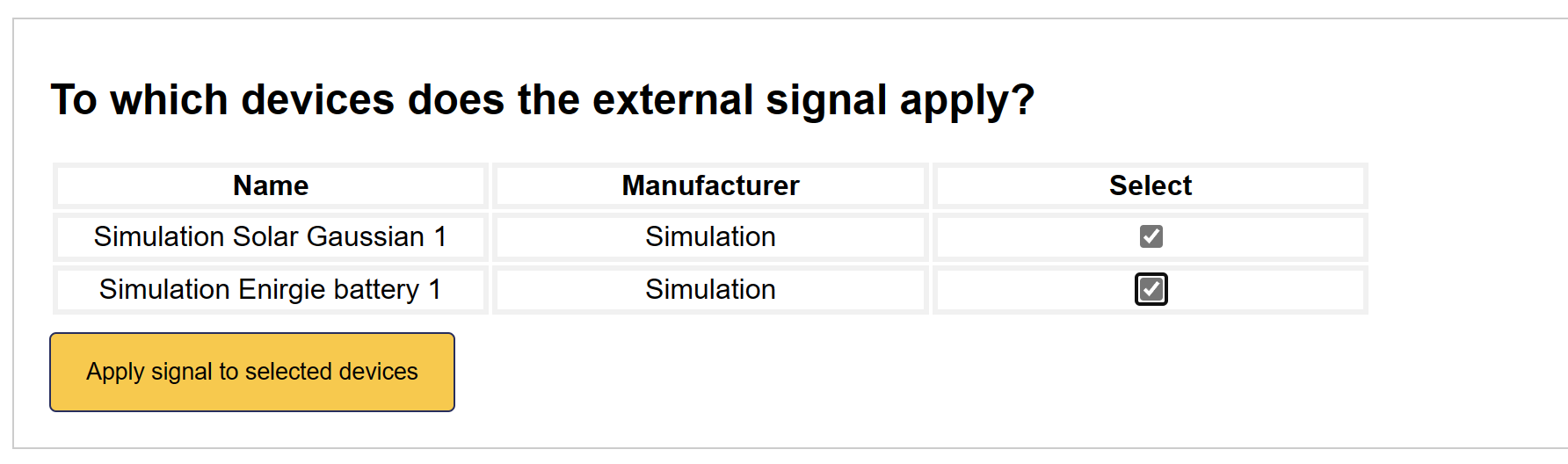
'Trevion' is now set up on the SmartgridOne Controller.